SPECIFIC ERROR CODES (Listed in NUMERIC ORDER) YOU MAY RECEIVE WHILE SETTING UP YOUR CAC READER & SOFTWARE
|
||||||
NOTE: This page lists specific error codes and Solutions (that I and others have come across). I hope one of these is the answer to correct whatever problem you are having. Please do not email me telling me the Solutions don't work. Everyone of these have worked on several other computers. If your particular problem is not on this page, please feel free to contact me and we will figure it out together.
Disclaimer: These fixes are for Home Users Only. Do not attempt these on your Government Computer (unless otherwise noted)
Receive "ssl_error_bad_cert_alert" when using Firefox
Solution: Follow Firefox configuration on Firefox support page
All known Firefox SSL Error codes: http://www.mozilla.org/projects/security/pki/nss/ref/ssl/sslerr.html
Receive "ssl_error_handshake_failure_alert" when using Waterfox to activate your PIV cert
Solution: Configure Waterfox to use your CAC, just like Firefox
Error
Code [38]: "Your Common Access Card (CAC) is invalid, and may
be revoked or expired. If you believe you have received this
message in error you may contact the DMDC Support Center (DSC) at
800-477-8227." when trying to access DMDCs Self Service
site to activate your PIV after
getting a new CAC issued on 9 or 10 September 2013. Error 38 Information:
DEERS had communication problems between RAPIDS and the CA issuing
servers, causing some CACs to not get programmed correctly on 9 & 10 September 2013.
Error 38
Solution-1:
Try using your CAC again. Some people's CACs "magically" started working
the next day. If you are not one of the lucky ones, try Solution 2 below.
Error 38
Solution-2:
Visit or
Contact an ID card office and see
if they know the system is functioning correctly and then get a new CAC
issued.
Error 53: "Your Common Access Card (CAC) certificates are invalid and access is revoked. If you believe you have received this message in error you may contact the DMDC/DEERS Support officer (DSO) at 800-538-9552."
Error 53 Information: This is usually caused by your certificates being revoked on your CAC. This can be because it is expired, you changed branches of the military (example: Regular Army to Army Reserve), retired, or your contract end date changed for contractors.
Error 53 Solution-1: Visit an ID card office to get a new CAC issued
Error 53 Solution-2: Sometimes you can try the 32 bit Internet Explorer, if you still have problems, make sure your web browser is configured correctly.
Error 107: Receive "Error 107 (net::ERR_SSL_PROTOCOL_ERROR): Unknown error." when using Google Chrome, Internet Explorer, or Firefox.
Error 107 Solution: Follow this guide, slides 18 & 19
Error 117: Receive "Error 117 (net::ERR_BAD_SSL_CLIENT_AUTH_CERT): Bad SSL client authentication certificate"
Information: This error can be caused by incorrectly configured system files in your windows Operating System.
Error 117 Solution 1: Check your clock on your computer. It cannot be off by more than 5 minutes from the web server
Error 117 Solution 2: Follow this guide
Error 117 Solution 3: Follow these steps to restore your computer
1) Logon to your computer as an administrator.
Error 141: Receive "Error 141 (net::ERR_SSL_CLIENT_AUTH_SIGNATURE_FAILED): Unknown error" when using Google Chrome on a Mac
Error 141 Solution 1: http://www.thursby.com/forum/viewtopic.php?f=11&t=99
Error 141 Solution 2: http://community.centrify.com/t5/Express-for-Smart-Card/Repeated-Error-141-on-Mountain-Lion-Chrome-amp-Safari/td-p/9428
Error 310: Receive "Error 310 (net::ERR_TOO_MANY_REDIRECTS): There were too many redirects"
Error 310 Solution: Double check your clock and time zone on your computer. If your clock is off by more than 5 minutes compared to the server you are trying to communicate with, you'll receive this error. Information found at TomsHardware
Error 400 Information: The OWA servers are under extreme load with more people using them to check their email.
Error 400 Solution: Try to access the site later. You can call their help desk at: 866-843-6624 and express your opinion with them.
Error 403.7: Receive "Error 403.7 - Forbidden: SSL client certificate is required.
Error 403.7 Solution: Install DoD certs again from links on http://militarycac.com/dodcerts.htm
Error 500: Receive "Error Code: 500 Internal Server Error. The server denied the specified Uniform Resource Locator (URL). Contact the server administrator." or "Certificate is revoked"
Error 500 Solution 1 (Windows): Follow this guide
Error 500 Solution 1a (Windows): Run the Cross Cert Removal Tool version 1.14, dated 3 MAR 2016 from: MilitaryCAC http://militarycac.org/crosscertremover/unclass-fbca_crosscert_remover_v114.zip or DISA http://iase.disa.mil/pki-pke/function_pages/downloads/unclass-fbca_crosscert_remover_v114.zip
Error 500 Solution 2 (Mac): Follow this information
Error 500 Solution 3 (Windows): Make sure you are selecting the EMAIL certificate (for most users) and PIV certificate (for Dual Persona users) IF you have selected the wrong certificate, close the web browser, remove, then reinsert your CAC.
Error 500 Solution 4 (Mac): Make sure you are selecting the EMAIL certificate (for most users) and PIV certificate (for Dual Persona users) IF you have selected the wrong certificate you will need to clear your keychain.
Error 500 Solution 5 (both OS'): Close ALL open web browsers, try to access the website again. Sometimes a restart of the computer is also necessary.
Error 500 Solution 6: (Windows): Contact the Army Enterprise Service Desk and request they figure it out. Their number is: 866-335-2769
Error 1079: Receive "Error 1079: The account specified for this service is different from the account specified for other services running in the same process."
Error 1079 Solution: Visit: http://support.microsoft.com/kb/2478117
Error 1316: Receive
"Error
1316. A network error occurred while attempting to read from the file
C:\"
Error 1316 Solution:
Download
Microsoft Windows Installer Cleanup Utility and uninstall
ActivClient with this program. Once uninstalled, restart computer,
then install your ActivClient software. This program will NOT work
on Windows 7 or 8, so, try the programs below. Download any of the below uninstaller
programs (listed alphabetically) and attempt to uninstall ActivClient.
Once uninstalled, restart computer, then install your ActivClient
software again.
Total Uninstall
(my preference)
Error 1316 Solution 2: Your current profile is
likely corrupt.
Create a new profile and install the programs from that profile.
Here's how to build a new profile.
Error 1321 Information / cause: This error may be
caused by Windows system files damage. The corrupted Windows
system files entries can be a real threat to the well being of your
computer.
Error 1321 Solution: Make sure you are logged in as
an administrator to perform the install.
Error 1321 Solution 2:
http://www.wiki-errors.com/err.php?wiki=1321
Error 1324: Receive "Error
1324. The path <insert file name here> contains an invalid character."
Error 1324 Solution:
This article should be
able to assist you.
http://windowsxp.mvps.org/usershellfolders.htm
Error 1324 Solution 2:
Consider building a
new profile and do the install / uninstall from the new profile.
Error 1327:
Receive "Error 1327. Invalid
Drive X" (X=any drive letter other than C)
Error 1327 Solution: Go to Start, Run, type in REGEDIT <Hit
Enter or OK> Navigate to: HKEY_CURRENT_USER\Software\Microsoft\Windows\CurrentVersion\
Explorer\User Shell Folders
In the right pane -
look for any entries which has an X or any other alphabets not C (your OS
folder) modify data to C:\
Error 1327 Solution 2:
Create a
new profile on your
computer and install ActivClient from the new profile.
Error
1327 Solution 3:
Follow guidance on
support.microsoft.com (has not been tested yet)
Error
1327 Solution 4: Follow
guidance on error1327.net
(has not been tested yet)
Error
1355: Receive
"Error 1335. The cabinet file 'Data1cab' required for this
installation is corrupt and cannot be used. This could indicate a
network error, an error reading from the CD-ROM, or problem with this
package."
Error 1355 Solution: Instead of
downloading ActivClient to your computer, then running it, try selecting
Run when prompted from AKO.
Error 1355 Solution 2: Follow guidance here:
http://www.techspot.com/vb/topic116856.html Error 1355 Solution 3:
Follow guidance here:
http://support.microsoft.com/kb/314810
Error 1500: Receive "Error
1500, another installation in progress, you must complete installation
before continuing this one."
when trying to
install ActivClient
Error 1500: Try restarting the computer, then
attempt install again.
Error 1500 Solution 2: a. Navigate to
"Services and Applications" in Computer Management. (Right click on Computer
and click manage), DO THIS UNDER A LOGIN WITH ADMINISTRATOR RIGHTS.
b. Expand Services and Applications
c. Click on Services
d. In the right side of the window Sort by name and go down to
Windows Installer. By default the start up type will be set to Manual.
(You will notice that the status will read "Started" even though you know
that it is not really running).
e. Right click on it and select properties
f. In the middle of the popup box you will see Startup Type.
Use the drop down arrow and select 'Disabled' and click apply.
g. Close out and reboot the computer. The service is now
set to disabled so on reboot it will not still think it has been started.
Now follow the above steps again and select 'Manual' and click apply and
close out the Computer Management screen.
Error 1613:
Receive "Error code 1613: This installation
package could not be opened. Verify that the package exists and that
you can access it, or contact the application vendor to verify that this is
a valid Windows Installer package"
Error 1613 Solution:
Download and install newer version of the Windows Installer service.
Error 1719: Receive "Error 1719: Windows installer service
could not be accessed."
Error 1719 Solution: Visit:
http://answers.microsoft.com/en-us/windows/forum/windows_vista-hardware/windows-installer-error-code-1719-problem/f270d2b0-e570-4009-90f6-aecbd685b8fd
Error 1720: Receive
"Error 1720: There is a problem with
this Windows Installer package. A script required for this install to
complete could not be run. Contact your support personnel or package
vendor."
Error 1720 Solution: Visit:
http://social.answers.microsoft.com/Forums/en-US/vistaprograms/thread/0b965fe8-2d16-498c-bb88-395911e13146
Error 1720 Solution 2:
Visit:
http://knowledge.donjohnston.com/kb/questions.php?questionid=254
Error 1721:
Receive "Error
1721. There is a problem with this windows Installer Package. A program
required for this install to complete could not be run."
Error 1721 Solution: Visit:
http://answers.microsoft.com/en-us/windows/forum/windows_7-windows_programs/error-1721there-is-a-problem-with-this-windows/200328d1-3310-49f2-942a-145a09041188
Error 1722: Receive
"Error 1722. There is a problem with the
Windows Installer package. A program run as part of the setup did not
finish as suspected. Contact your Support personnel or package
vendor." when installing ActivClient 64 bit on Windows 7 or
Vista.
Error 1722 Solution: Select OK
Error 1722 Solution 2:
Make sure you are using the latest Windows Installer (Performing a Windows
update should take care of this).
Error 1722 Solution 3:
Temporally disable any Antivirus / Firewall programs you have running
Error 1722 Solution 4: Make
sure you are running the file as an administrator.
Error 1722 Solution 5:
Create a new profile on your
computer and install ActivClient from the new profile.
Error 1722 Solution 6: Unfortunately, if the
above 5 Solutions do not work, your only other choice will be to reload
your Operating System (as there is a "something" corrupt in your Windows
install).
Error 1901: Receive "Error 1901 error attempting
to read from the source installation database
c:\windows\installer\9df6bf.msi" when trying to install ActivClient
Error 1901 Solution: Run Windows update to get the
latest Windows installer package for your computer.
Error 1901 Solution2: Temporarily turn off any
antivirus / antispyware programs (like Spybot and MacAfee) then try the
install again
Error 1920:
Receive "Error 1920 service smartcard failed to start. Verify
that you have sufficient privileges to start system services."
Seen with Windows 8
Error 1920 Solution 1: Visit:
http://answers.microsoft.com/en-us/windows/forum/windows_8-hardware/error-1920-service-smart-card-failed-to-start/8d82fac0-cd3d-42ae-b7b6-40b7d66a125b
Error 1920 Solution 2: Run this
registry file to correct your registry NOTE:
Anytime you make changes to the Registry it is a recommended you
back it up
first
Error 1920 Solution 3: Follow these
fixes to get your Smart
Card service to start
Error 1935:
Receive "Error 1935. An error occurred during the installation of
assembly component {837BF1EB-D770-94EB-A01F-C8B3B9A1E18E}.HRESULT:
0x80070BC9." or "Error 1935. An error occurred during the
installation of assembly component
{837BF1EB-D770-94EB-A01F-C8B3B9A1E18E}. HRESULT: 0x8007054F." or
"Error 1935. An error occurred during installation of assembly
component {d2730d3f-3c41-5884-ao1f-c8b3b9a1e18e}. HRESULT: 0x0070424."
Error 1935 Solution: There is
more than likely a program that is running in the background that is not
allowing ActivClient to install. If you have any Antivirus,
antispyware, or system mechanic programs running, please disable them.
More information can be found regarding this error at:
http://support.microsoft.com/kb/902330
Error 2738:
Receive "Error 2738. Could not
access VBScript run time for custom action" while installing ActivClient
Error 2738 Cause:
This error message indicates that the VBScript engine is not currently
registered on the machine where the install / uninstall is taking place.
NOTE:
If you have Windows 7, you may
not need ActivClient, which could resolve this error for you.
Error 2738 Solution / Resolution:
The
VBScript engine can be quickly registered by following these steps:
a.
Run Command Prompt as administrator
64 bit Windows:
At the
Command Prompt,
Type: cd\, then cd windows\syswow64 and hit Enter
Error 2738
Solution /
Resolution (additional steps): Users may
also need to remove the vbscript registry key:
32 bit: Windows users navigate to: HKEY_CURRENT_USER\SOFTWARE\Classes\CLSID\{
B54F3741-5B07-11CF-A4B0-00AA004A55E8} and then re-register vbscript.dll.
64 bit: Windows users navigate to:
HKEY_LOCAL_MACHINE\SOFTWARE\Classes\CLSID\{
B54F3741-5B07-11CF-A4B0-00AA004A55E8}
Visit this
link for more info. A user couldn't complete the installation
without performing these additional steps.
NOTE: If you have
problems deleting the registry key. Right click the Registry file
[you are trying to delete mentioned above], Select Permissions,
Advanced (button), Select Owner (tab), Under
Change owner to: select Administrators, Apply, then OK.
Now that you are back on the Security tab, select
Administrators, click the Allow box next to Full
Control, hit Apply, then OK.
You should now be able to Right click and delete the Registry key.
Restart your computer, then try the install / uninstall again
Error 2738
Solution 2:
Your McAfee, Symantec / Norton, or Kaspersky Antivirus can also be
causing this issue for you. Try temporarily disabling the antivirus
program during the ActivClient install / update. McAfee
users may have to uninstall it, you can try
running the
McAfee removal and cleanup utility
Error 2738 Solution 3: Your
current profile could be corrupt. Create a new profile and install
the programs from that profile. Here's how to build a new profile.
Error 2738 Solution 4:
If the above ideas don't work, there is a problem
with your Windows installation, and the only option left is to back up
your files and reload your Windows Operating System.
Error 2753 Problem: Receive "Internal Error 2753" Information:
The Microsoft Windows error "Internal Error 2753" is related to a Windows
Installer failure. If this error is popping up as a prompt on your Windows
operating system, you will not be able to install applications on your
system. Thankfully, there is an easy fix for this problem that you can
perform using your computer's DOS prompt.
Error 2753 Solution: Step1.
Windows Vista & 7 users - Click on the Windows Orb icon (lower left of
your main desktop screen), in the Start Search box, type in "CMD."
You will see a list of choices, select CMD under Programs and hit Enter.
You can also
navigate to it by clicking on the Start Orb, go to "All Programs,"
"Accessories" and choose "Command Prompt," and the DOS window will appear. Windows XP Users
- Click the Start button, click on "Run," then
type "CMD" in the run box and hit the Enter key This will bring up a
black DOS command window. Step 2. Type "regsvr32
vbscript.dll" without the quotation marks, make sure you put the space in
between 32 and vbscript, press <Enter> Step 3. You should
now see the message "DllRegisterServer in vbscript.dll succeeded," if this
message appears, the required files for the installer have been
successfully registered, and you should be able to install your apps. Step 4. Click on the
installer file for your application and see if the error appears again. If
the installation begins, the files are now properly registered. Repeat the
process one more time if the installation still gives the Error 2753
message.
Error 2753
Solution 2: Follow guidance on
Microsoft's website,
they have an automated file you can use.
Error
2753 Solution 3: Make sure the file you are trying to
install is not already installed (or have a folder in Program Files).
Example: you are receiving this error when trying to install
ActivClient. After you have uninstalled and restarted your
computer, go to: C:\Program Files\ and C:\Program Files (x86) and
delete the folder titled: ActivIdentity. Once deleted,
try the install again.
Error 2755
Problem: Receive
"Error 2755: Server returned unexpected error 110 attempting to install
package ActivClient CAC x86 6.2.msi"
Error 2755 Solution: This
is related to using Encrypted File System (EFS). Try copying the
installer program [ActivClient CAC x86 6.2.msi] to a USB drive
(unencrypted FAT32 file system) and try the install again. Error 4012: CAC
NOT Found in Reader when trying to activate PIV at
https://www.dmdc.osd.mil/self_service Error 4012-1 Solution:
Place CAC into reader and try again Error 4012-2 Solution: Follow
Solution on
Enterprise Email page of exposing your PIV using ActivClient instead Error 4015: Time
Out / Timing Out
when trying to activate PIV at
https://www.dmdc.osd.mil/self_service Error 4015-1 Solution:
Website is not functioning correctly, try again later
Error 4015-2 Solution: Follow Solution
on Enterprise Email
page of exposing your PIV using ActivClient instead Error 4017: Could
not process your request, Please try again
when trying to activate PIV at
https://www.dmdc.osd.mil/self_service Error 4017-1 Solution:
Website is not functioning correctly, try again later
Error 4017-2 Solution: Follow Solution
on Enterprise Email
page of exposing your PIV using ActivClient instead Error 4018: Unable
to connect to the LCM user portal. Please contact help desk Error 4018 Solution:
Website is not functioning correctly, try again later Error 4019:
Unable to submit request to LCM user portal
when trying to activate PIV at
https://www.dmdc.osd.mil/self_service Error 4019-1 Solution:
Website is not functioning correctly, try again later
Error 4019-2 Solution: Follow Solution
on Enterprise Email
page of exposing your PIV using ActivClient instead Error 4020: Middleware
is either improperly installed or not installed at all. Please
confirm or upgrade your middleware version and try again. Error 4020 Solution:
You do not have the latest ActivClient installed, please re review how
to activate your PIV cert
here. Error 4022: Unable
to update CAC
when trying to activate PIV at
https://www.dmdc.osd.mil/self_service
Error 4022-1
Solution:
Website is not functioning correctly, try again later
Error
4022-2
Solution: Follow Solution
on Enterprise Email
page of exposing your PIV using ActivClient instead Error 4023:
Reading Data from CAC Error
when trying to activate PIV at
https://www.dmdc.osd.mil/self_service
Error 4023-1
Solution:
Try reinserting the CAC, try site again, try again later
Error
4023-2
Solution: Follow Solution
on Enterprise Email
page of exposing your PIV using ActivClient instead Error 4024:
Failed to Disconnect SMO user portal
when trying to activate PIV at
https://www.dmdc.osd.mil/self_service
Error 4024-1
Solution:
Website is not functioning correctly, try again later
Error
4024-2
Solution: Follow Solution
on Enterprise Email
page of exposing your PIV using ActivClient instead Error 4027: "Error
occurred on Server"
when trying to activate PIV at
https://www.dmdc.osd.mil/self_service
Error 4027-1
Solution:
Website cannot handle the volume of traffic, try again later
Error
4027-2
Solution: Follow Solution
on Enterprise Email
page of exposing your PIV using ActivClient instead
Error 4028:
"An unexpected Error has
occurred on Server"
when trying to activate PIV at
https://www.dmdc.osd.mil/self_service
Error 4028-1
Solution:
Website is not functioning correctly, try again later
Error 4028-2
Solution: Call their help website help
desk: 800-477-8227 (hours: 24 / 7) Error 4034: Error
com to LCM user portal
when trying to activate PIV at
https://www.dmdc.osd.mil/self_service
Error 4034-1
Solution:
Website cannot handle the volume of traffic, try again later
Error
4034-2
Solution: Follow Solution
on Enterprise Email
page of exposing your PIV using ActivClient instead
Error
5011: ActivClient
on this computer may have been configured to use the PIV EndPoint
interface. The ActivClient configuration must be changed to "Prefer
GSC-IS over PIV EndPoint" before the CAC can be updated. when trying to activate PIV at
https://www.dmdc.osd.mil/self_service Error 5011-1 Solution:
Follow Solution
guidance on
PIV activation page, but do the opposite of what it
says, meaning Prefer GSC-IS over PIV EndPoint...
change the No to a
Yes. You will need to restart your
computer before trying again.
Error 12221 - Mac: Receive Error 12221
when trying to access webmail.
Error 12221 Solution-1:
Clear your keychain of all
items that mention 'mail.mil' and try accessing mail.mil again.
Error 12221 Solution-2: Visit:
http://www.thursby.com/forum/viewtopic.php?f=11&t=37 for their ideas
to fix this
Error 12221
- Windows: Receive Error 12221 when trying to access
webmail
Error 12221 Solution:
Install DoD certs again from links on
http://militarycac.com/dodcerts.htm
If the above idea does not work on its own, then Delete all DoD certs
from Internet Explorer, Tools, Internet Options, Content (tab),
Certificates (button), Intermediate Certification Authorities (tab).
Install DoD certs again from links on
http://militarycac.com/dodcerts.htm
Error
100001: Receive Error 100001 when adding DoD certificates
to your Mac
Error 100001 Solution: Run
Disk Utility to run First Aid. Then in Finder click
Go, press the Alt-Option key, Select Library
from the dropdown menu. Move the Keychains (folder) to your
desktop and restart computer. You will have to reenter Apple ID
password and other passwords. You should now be able to
install the DoD
certificates. Once everything is working, you can move the
Keychain (folder) from your desktop to your trash.
Error
100013: Receive Error 100013 when adding X509Anchors (CA certificates)
certs to your Mac.
Error 100013
Solution: Visit the
Aikidoka Technologies site
for instructions (even though it shows Snow Leopard, it should work for
any version of Mac OS
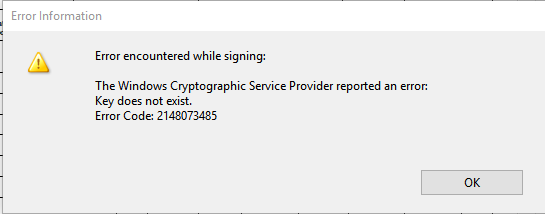
Error 2148073485: When attempting to sign a PDF,
Receive "Error encountered while signing: The Windows
Cryptographic Service Provider reported an error: Key does not
exist. Error Code: 2148073485"
Error 2148073485 Solution: Uninstall Adobe Reader
DC, Restart computer, then download
Adobe Reader
XI (Select Operating System, Language, and Reader 11.x.x).
.
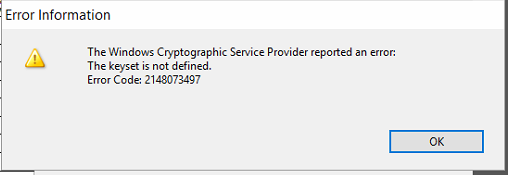
Error 2148073497: When attempting
to sign a PDF, Receive "The Windows Cryptographic Service Provider
reported an error: The keyset is not defined. Error Code:
2148073497"
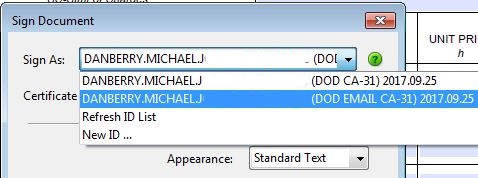
Error 2148073497 Solution: Select the other
certificate (if default is DOD CA-xx, try DOD EMAIL CA-xx)
|
||||||
|
If you have questions or suggestions for this site, contact Michael J. Danberry
Last Update or Review: Sunday, 03 April 2022 12:45 hrs
The following domain names all resolve to the same website: ChiefsCACSite.com, CommonAccessCard.us, CommonAccessCard.info, & ChiefGeek.us
|